Support
Help with Slash.
Install it, set it up, change the keys. If your answer is not here, write to support@tryslashapp.online.
Install Slash.
- Open the file Slash-1.0.0.dmg from your Downloads folder.
- Drag Slash onto the Applications folder in the window that opens.
- Open Slash from Applications. macOS says the app was downloaded from the internet and that Apple checked it for malicious software. Choose Open.
- Give Slash the Accessibility permission (next section).
Slash has no window of its own. It lives in the menu bar: look for the small slash icon at the top right of your screen. To start Slash every time you log in, open that icon and choose Open at Login.
Slash needs macOS 13 (Ventura) or later. It runs on Macs with Apple silicon and on Intel Macs.
The Accessibility permission.
Slash asks for one permission: System Settings > Privacy & Security > Accessibility > Slash. macOS requires it for every app that reacts to keys typed in other apps and types text into them. Slash uses it for two things: to notice when you type the trigger, and to put the emoji you chose into your text.
Slash starts working as soon as the switch is on. You do not need to restart it. Slash has no network code, so nothing you type can leave your Mac through Slash. The Privacy Policy says exactly what is stored.
Use the picker.
- Put the text cursor in any text field.
- Type // quickly, or hold ⌥ (Option) and press /.
- Type a name, for example
heart,lolorthumbsup. Or move with the arrow keys. - Press Enter. The emoji is in your text.
| Key | What it does |
|---|---|
| Enter | Insert the selected emoji |
| ←↑↓→ | Move the selection |
| Space | Add the selected emoji to favorites, or remove it |
| Shift + arrows | Change the order of your favorites |
| Tab / ShiftTab | Next or previous category |
| ⌫ | Delete one letter. With nothing typed, close the picker |
| Esc | Close the picker. Nothing is inserted |
You can also click an emoji, a star, or a category icon. The full list of names is on the emoji names page.
Change the trigger or the shortcut.
Open the Slash icon in the menu bar and choose Settings…. There are two ways to open the picker, and you can change or turn off each one.
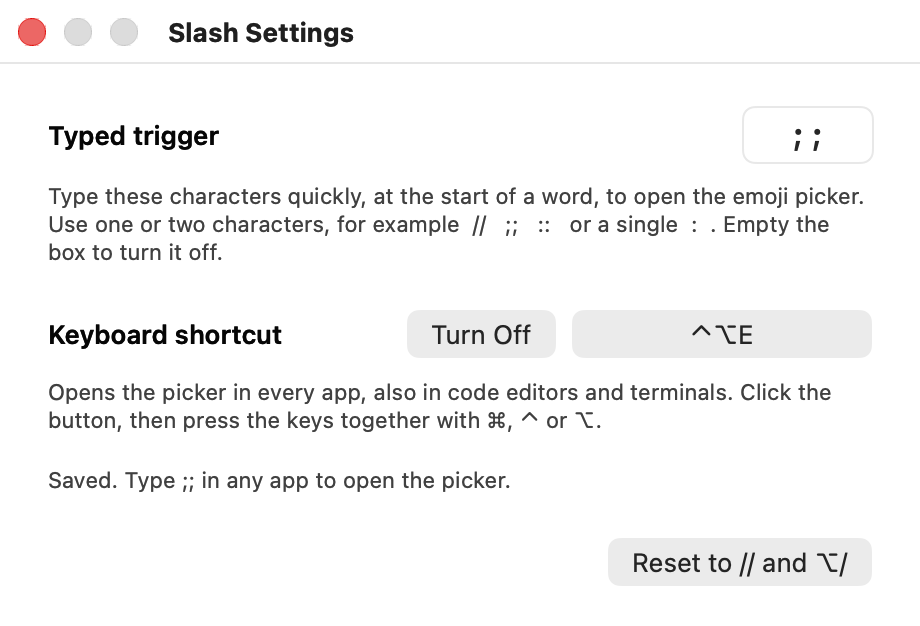
- Typed trigger (at first //): one or two characters that you type quickly. For example
;;,::,,,or one:. One letter or one digit alone is not allowed, because the picker would open at the start of every word. Empty the box to turn the typed trigger off. - Keyboard shortcut (at first ⌥/): click the button, then press a key together with ⌘, ⌃ or ⌥. While it records, Esc cancels and ⌫ turns the shortcut off.
Reset to // and ⌥/ brings back the first settings. Changes work at once.
Turn Slash off for one app.
Bring the app to the front, open the Slash icon in the menu bar and click Use // in App. The check mark shows if the typed trigger is on for that app. The keyboard shortcut still works there.
In code editors and terminals (Xcode, VS Code, Cursor, Terminal, iTerm, Warp, Ghostty, JetBrains editors, Sublime Text, Zed and others) the typed trigger is off at first, because // starts a comment in code. You can switch it on in the same menu. Pause turns the whole picker off until you switch it on again.
Remove Slash.
- Open the Slash icon in the menu bar and choose Quit Slash. If Open at Login has a check mark, click it first to remove it.
- Drag Slash from Applications to the Trash.
- Optional: in System Settings > Privacy & Security > Accessibility, select Slash and press the minus button.
Slash keeps its small settings file (favorites, usage counts, your choices) in the standard macOS place for app settings. To delete it too, run this in Terminal: defaults delete com.archil.slash
Problems and answers.
The picker does not open when I type //. What can I do?
Check these four things. 1) The Slash icon is in the menu bar; if not, open Slash from Applications. 2) In System Settings > Privacy & Security > Accessibility, Slash is switched on. If it is on and still does not work, switch it off and on again. 3) Slash is not paused: open the menu bar icon and look at Pause. 4) The app in front has the typed trigger on: the menu shows Use // in App. In code editors and terminals it is off at first, so use ⌥/ there.
Why does // not open the picker in the middle of a word?
This is on purpose. The typed trigger works at the start of typing, after a space, or after an emoji. Inside a word or a link, such as https://, it stays normal text. You must also type the two slashes quickly (within 0.4 seconds).
Does Slash work in password fields?
No. When a password field has the cursor, macOS hides every key press from other apps. That is a macOS safety rule, and it is good.
Does Slash work with Chinese, Japanese or Korean input?
While an input method that builds text from several keys is active, Slash leaves the typed trigger alone so it does not disturb your typing. Use the keyboard shortcut (⌥/) there. Emoji names are searched in English, and Slash reads the key positions, so you can type the name while another layout such as Georgian or Russian is active.
An app does not get the emoji. What now?
Most apps receive the emoji as typed text. If an app shows nothing, write to support@tryslashapp.online with the name of the app. Slash has a second way to insert (through the clipboard) that we can switch on for that app.
How do I update Slash?
Slash has no network code, so it does not update itself. New versions are announced on the What is new page. Download the new version from your download page and replace the app in Applications. Your favorites and settings stay.
How do I get my download link again?
Your download page link keeps working. If you lost it, write to support@tryslashapp.online from the email address you used to pay.
Contact.
Write to support@tryslashapp.online. Say which Mac and macOS version you have and which app you were typing in. We answer in English, usually within two working days. For a refund, see the Refund Policy.

Every emoji, two slashes away.
The emoji picker for Mac that lives on your keyboard.
One payment. No subscription. macOS 13 or later. 14-day refund.