Just type its name.
Type emoji with your keyboard the way you already think of them: heart, lol, thumbsup, +1. Exact names come first, then names that start with what you typed. Favorites and the emojis you use most are always on top.
Slash for Mac
Type // in any app on your Mac. Pick an emoji. Press Enter. Your hands never leave the keyboard.
macOS 13 or later
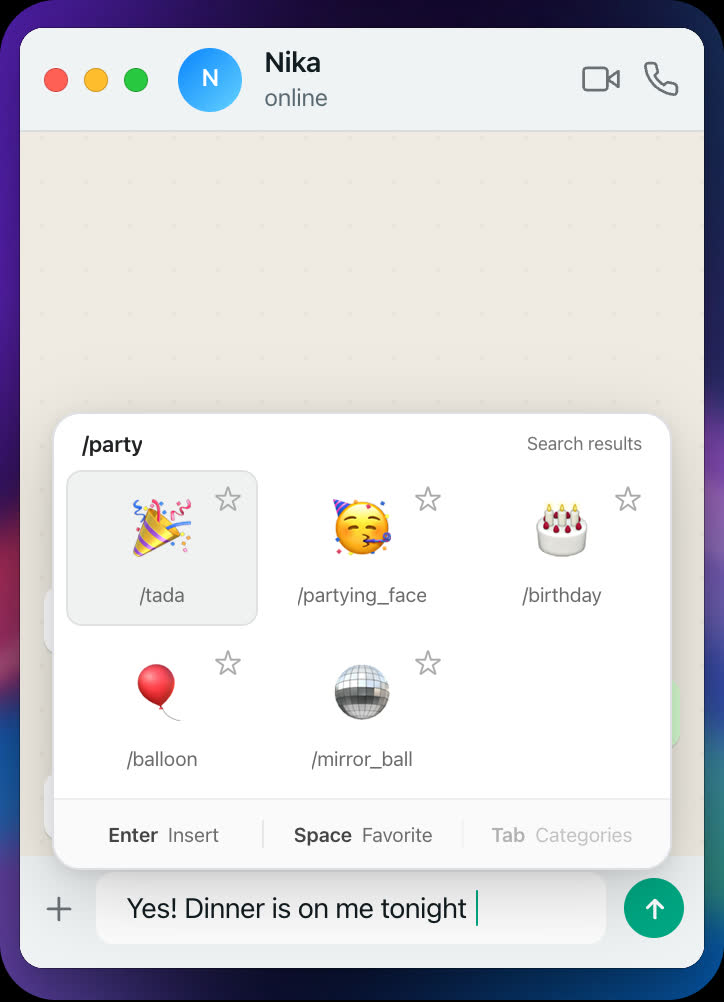
Try it. Click the message field and type //, or press ⌥/ Try it. Tap the message field and type //
So your hand leaves the keyboard. You find the mouse, open a panel, scroll, click, and come back. Five steps for one small picture.
Slash is an emoji picker for your keyboard. It opens where you type, in every app, and it closes the moment you press Enter. Your flow stays whole.
How it works
Step 1
Anywhere you can type. Slash takes the slashes back and opens the picker right at your text cursor. Or press ⌥ /.
Step 2
Type a name like heart, lol or thumbsup, or move with the arrow keys. Your favorites are already on top.
Step 3
The emoji is in your text. The picker is gone. Keep typing. You never touched the mouse.
Works everywhere
Slash is not a plug-in for one messenger. It works in every text field on your Mac. Use the same emoji keyboard shortcut in WhatsApp, Telegram, Signal, Viber, Slack, Discord and Messages, and on any website in your browser.
The windows above are simple drawings for this demo. In the real apps, Slash opens the same picker at your text cursor.
Features
Type emoji with your keyboard the way you already think of them: heart, lol, thumbsup, +1. Exact names come first, then names that start with what you typed. Favorites and the emojis you use most are always on top.
3,900+
Faces, hands, flags and all skin tones, in nine categories. Press Tab to jump between them.
Press Space on an emoji to star it. Favorites open first. Hold Shift and use the arrows to reorder them.
| // or ⌥/ | Open the picker |
|---|---|
| Enter | Insert the selected emoji |
| ←↑↓→ | Move the selection |
| Space | Add or remove a favorite |
| Tab | Next category |
| Esc | Close. Nothing is inserted |
In Xcode, VS Code, Cursor, Terminal, iTerm and JetBrains editors, // stays a comment. Links like https:// stay links. When you want an emoji there, press ⌥ /.
The picker follows your Mac's appearance.
Slash has no network code. It keeps three things on your Mac: your favorites, how often you used each emoji, and your per-app choices. It asks for one permission, Accessibility, which macOS requires for any app that types into other apps.
Pause the picker, switch // off for the app in front, or open Slash at login.
The film
A short film about two keystrokes.
The film is not available right now. Try the live demo at the top of the page.
Many apps already use a single / for their own commands, for example ChatGPT, Slack, Discord and Notion. Slash waits for the second /. It then removes the first / from the text field, so the other app's command menu closes and your text stays clean.
No. // opens the picker only at the start of typing, after a space, or after an emoji. It stays normal text inside a link or a word such as https:// and and//or, when the two slashes are typed more than 0.4 seconds apart, and when you press Space right after //. If you type something that cannot be an emoji name, the picker closes and types back exactly what you typed.
In code editors and terminals such as Xcode, VS Code, Cursor, Terminal, iTerm and JetBrains, // starts a comment, so Slash leaves it alone. Press ⌥ / (Option and slash) there instead. That shortcut opens the picker everywhere.
Yes. Slash works in text fields on websites, in any browser on your Mac. In Chrome-based browsers the picker opens just above or below the text field, at its left edge, because those browsers do not report the exact cursor position.
One: Accessibility, in System Settings > Privacy & Security > Accessibility. macOS requires it for any app that reacts to keys typed in other apps and types text into them. Slash asks on first start and begins working as soon as the switch is on. No restart is needed.
Slash has no network code, so it sends nothing. On your Mac it stores only your favorites, how often you used each emoji, and your per-app // choices.
Slash needs macOS 13 or later. The current download is built for Macs with Apple silicon.
Yes. The Slash icon in the menu bar has a switch that turns the // trigger on or off for the app in front, and a Pause item that turns the picker off for a while.

The emoji picker for Mac that lives on your keyboard.
macOS 13 or later